| |
|
|
Multi-tenancy for franchises Solution No. 181
What is multi-tenancy?[top]
Multi-tenancy allows more than one QuickBooks database to sync to the same Method company account. The company account gets divided into the main "head office" company account, and the "franchisee" tenant company accounts. Even though the franchises have new company account names, in reality they are all syncing to the same back-end as the head office and all other franchisees.
In this document, "franchisee" and "tenant" can be used interchangeably.
Who is multi-tenancy for?[top]
- Franchisors who have many franchisees, each with their own QuickBooks database.
- Each franchisee syncs their QuickBooks database to Method and can see only their work. The advantage to the franchisor is being able to design screens that are instantly and universally available to all franchisees, without needing to copy the screens individually into each franchisee account.
- Franchisors can also create call center screens that search, insert and update records in multiple franchisee accounts, without needing to sign out and back in.
- Finally, franchisors are able to create consolidated reports.
- Method users who have more than one QuickBooks database can also setup a multi-tenancy environment.
- If you have multiple businesses, but you want to share data and screens across those businesses, go ahead and setup a multi-tenancy account – just be prepared to do a lot of advanced customization.
While an existing company account can be converted to be the "head office" of a multi-tenancy environment, there is currently no way to transfer an existing company account to be a "franchisee".
How do I get set up?[top]
To get set up, you'll need to contact Method and ask us to enable this feature on your account. We'll convert your existing company account to a multi-tenancy environment.
How do I add franchisees?[top]
- Log in as the primary admin of the Method classic account. Go to Customize > Users.
- Go through the process of creating a new user.
Ensure to use an email and username that hasn’t been used for this account.
- In step 7 place a checkbox in Assign User to Franchisee.
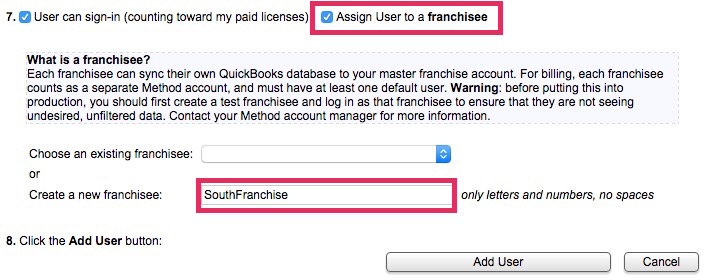
- Type out a name for a new franchisee next to Create a new franchisee.
- Click Add User or Add User & email invitation.
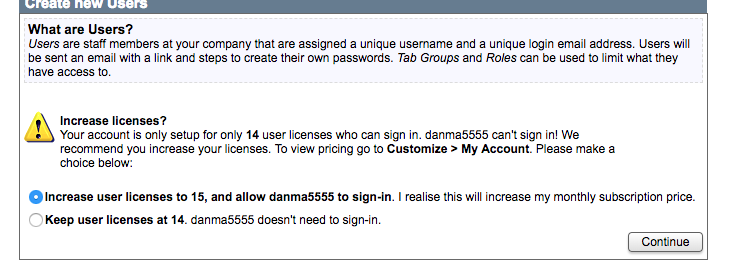
- Continue when asked to increase licenses since the new user will need to sign in.
- It will ask you to setup the user settings. We suggest to give them administrator permissions and all permissions for now. This can be changed after the first sync is completed.
- The franchisee can now sync theirQuickBooks file, using the franchisee name as their Company Account name.
- First time sync for QB Desktop – For each franchisee, install the sync engine as you would with a normal new account, enter your franchise's Company Account, User Name and Password and then click Connect.
- First time sync for QB Online –
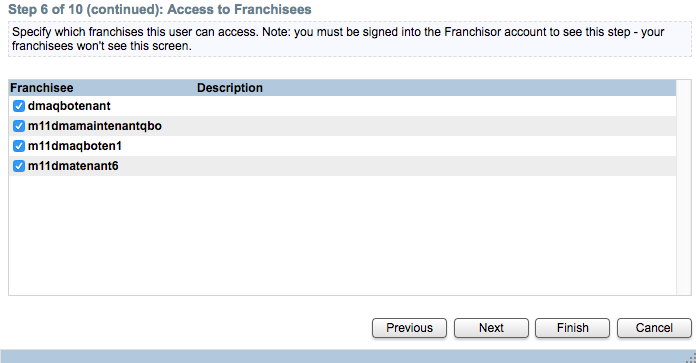
- Ensure that the primary admin of the classic account is given access to the tenant. This is critical, because otherwise you’ll run into a QBO sync error when you try to sync the tenant. Click the primary admin in the user list, go to step 6 of 10 (continued) and ensure the primary admin access to the tenant and and click Finish.
- First time sync: The invited user needs to log into their tenant Method account by accepting the invite.
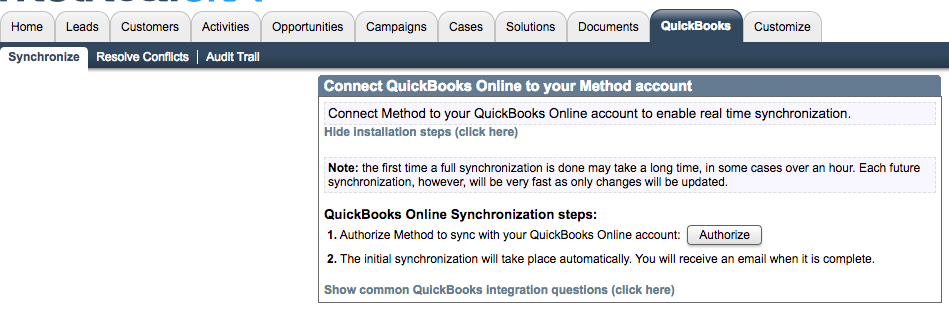
The invited user then will go to Quickbooks->Synchronize->Authorize.
It should take you to the QB page to authorize. Please ensure it is the correct QBO file that you’re connecting. Once you authorize and accept all the QBO authorize prompts, the syncing will start!
How do I assign a user to more than one franchisee?[top]
- Go to Customize > Users.
- Edit an existing user.
- Advance to Step 6 of 10.
- Click Next again, taking you to Step 6 of 10 (continued): Access to Franchisees.
- Select which franchisees this user can sign into and access. By doing this you are setting up the user's Permitted Tenant List.
How does pricing work?[top]
- Multi-tenancy is only available for the Method CRM Pro version.
- Regular Method CRM Pro pricing applies (starts at $40 /user/month base).
- There is no trial period on franchisees, you will be billed the same day a franchisee is added.
- There must be at least one default user per franchisee. Otherwise, a single user price will be charged for that franchisee.
- Concurrent pricing is not available – there is no shared licensing.
Customization basics[top]
It should be noted that customizing a multi-tenant environment is an advanced concept. In most cases, franchisors will initially get setup with help of a 3rd party Method Solution Provider, or work with our customization team directly. However, if you are technically savvy and have the necessary time, you can take on this customization yourself.
- Each company account in the multi-tenancy environment is stored in a "Tenants" table.
- The Name field in the Tenants table corresponds to the company account name for the head office or franchisee.
- All other tables have a TenantID field. This corresponds to the RecordID value in the Tenants table. There is also a TenantID_RecordID field, which has the same value as TenantID.
- For example, if a head office has 0 customers and 3 franchisees, and the franchisees have 3 customers each, there will be 9 customers in the Customer table. The Tenant table might look like this:
| Name |
RecordID |
| HeadOffice |
1 |
| East |
2 |
| West |
3 |
| North |
4 |
The Customer table might look like this:
| Name |
TenantID |
| Bob Crenshaw |
2 |
| Craig Crider |
2 |
| John Smith |
2 |
| Harry Rosen |
3 |
| Brad Smith |
3 |
| John Smith |
3 |
| May Cosman |
4 |
| Lucky Heart |
4 |
| Tom Johnson |
4 |
Note the name John Smith appears twice, but in different franchisees (2-East and 3-West).
- When a user signs in, they specify which franchisee they want to sign into. For the "Company Account" they'll use the name of their "franchisee" tenant company account.
- All dropdowns, grids, reports and calendars are automatically filtered to limit the data to only show records relating the TenantID that signed in. For example, if a user signed into the East franchisee, which is TenantID 2, they would only see Bob Crenshaw, Craig Crider and John Smith.
- If a record has no TenantID specified, then it is considered global, and shown to everyone.
What Value From Sessions options are available?[top]
- "Multi-Tenancy- Current Tenant ID" tells you the TenantID the user is currently signed into.
- "Multi-Tenancy- Permitted TenantIDs" gives you the user's "Permitted Tenant List", a comma separate list of the TenantIDs this user has been given access to.
How do I see the franchisee name in a table?[top]
- In the example above, it would be much easier to see the customers displayed like this, with the name of the franchisee:
| Name |
TenantID |
Tenant Name |
| Bob Crenshaw |
2 |
East |
| Craig Crider |
2 |
East |
| John Smith |
2 |
East |
| Harry Rosen |
3 |
West |
| Brad Smith |
3 |
West |
| John Smith |
3 |
West |
| May Cosman |
4 |
North |
| Lucky Heart |
4 |
North |
| Tom Johnson |
4 |
North |
- For performance reasons, by default, each table shows you only which TenantID a record belongs to. However, you can add linked fields which show this information. Go to Customize > Tables / Fields, edit the table you want to see the Name in, and add a linked field, via TenantID, to the Name field in the Tenant table.
How does filtering work?[top]
By default, objects will show only the records that have no TenantID or that match the TenantID the user signed in with. However, if you apply a filter that in any way specifies the TenantID, then your filter will override. Keep in mind that regardless of which filter you apply, records will still be limited to their Permitted Tenant List.
How does saving work?[top]
How does Retrieve Value From Table work?[top]
- Very similar to filtering grids and dropdowns. If there is not a TenantID field specified in your "where", it will default to the TenantID the user signed in to.
- If you specify something like TenantID Not Equal To -1, then it will satisfy the requirement that you are overriding the automatic TenantID filter and that you know what you are doing. However, even if you override, it will still only show records that are accessible in the user's Permitted Tenant List.
- For example,imagineyourmulti-tenantenvironmentconsistsofTenantID 1 (the head office), and 2,3,4 (the franchisees). The signed in user has beengivenaccesstoTenantID 1,2 and 3, but not 4. Imagine also that the user has signed into thefranchiseecorrelatedtoTenantID 2.
- Scenario 1: Searching the Customer table with the Retrieve Value From Table action, where TenantID Not Equal To -1, will give you all customers from tenant 1,2,3 but not 4, since this user does not have TenantID 4 in his Permitted Tenant List.
- Scenario 2: "Brad Smith" is a customer, and belongs to TenantID 3. Searching the Customer table with Retrieve Value From Table, for the customer "Brad Smith" where no TenantID is specified in the "where" will give no results back, since the user signed into TenantID 2. In order to get Brad Smith, if you knew the TenantID, you would specify the "where" to TenantID Equal To 3. If you did not know the TenantID of Brad Smith, you would specify the "where" to TenantID Is Not Equal to -1
How can I revert back to a normal Method Account?[top]
We don't currently have anything set up to revert back to a non-tenant account. The best move would be to manually remove the tenants and all tenant-related customization, then use the Head Office as the main account for all users. There is no harm in having a multi-tenant database vs. a single tenant one – the multi-tenant one just has more muscle!
What happens if I cancel a franchisee/tenant?[top]
- You can cancel franchises in the My Account portal, just like any non-multi-tenant account.
- If you cancel a tenant, you will no longer be able to log into to that tenant, or have data sync to that tenant.
- The data recorded for that tenant stays in the database, and can be viewed or modified. Unlike a non-multi-tenant database, the data is not deleted.
[top]
| Created on | Feb-10-2012 |
| Last modified by | Caleb J. on | Mar-01-2021 |
|
|
|
|
